Create Registration App for Live Platform Operation Center
You must register the Live Platform Operation Center Application for Multitenancy setup. You create a main registration that manages login authentication for all System Administrator user accounts that require access to Live Platform Operation Center in the Multitenancy deployment:
|
■
|
Registered Service Provider Tenants |
After performing this procedure, you must configure the App credentials in OVOC Web and add operators for external tenants and assign them access roles:
|
➢
|
To configure Live Platform multitenancy: |
|
2.
|
Under Manage Azure Active Directory, select View. |
|
3.
|
In the Navigation pane, select Manage > App registrations. |
|
4.
|
Click New Registration. |
|
5.
|
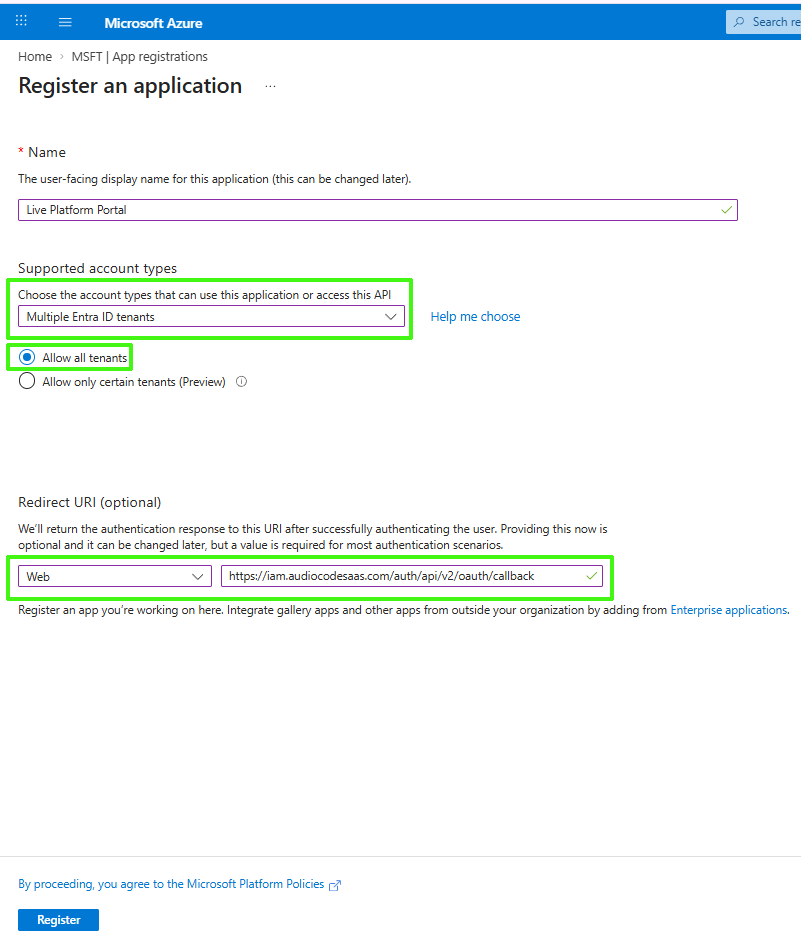
Enter the name of the Live Platform portal registration tenant. |
|
6.
|
Select account type: Multiple Entra ID tenants. |
|
7.
|
Select Allow All Tenants. |
|
8.
|
Under Redirect URI, add the HTTPS Redirect URI (REST endpoint) for connecting to OVOC Web in the following format: https://iam.audiocodesaas.com/auth/api/v2/oauth/callback |
|
9.
|
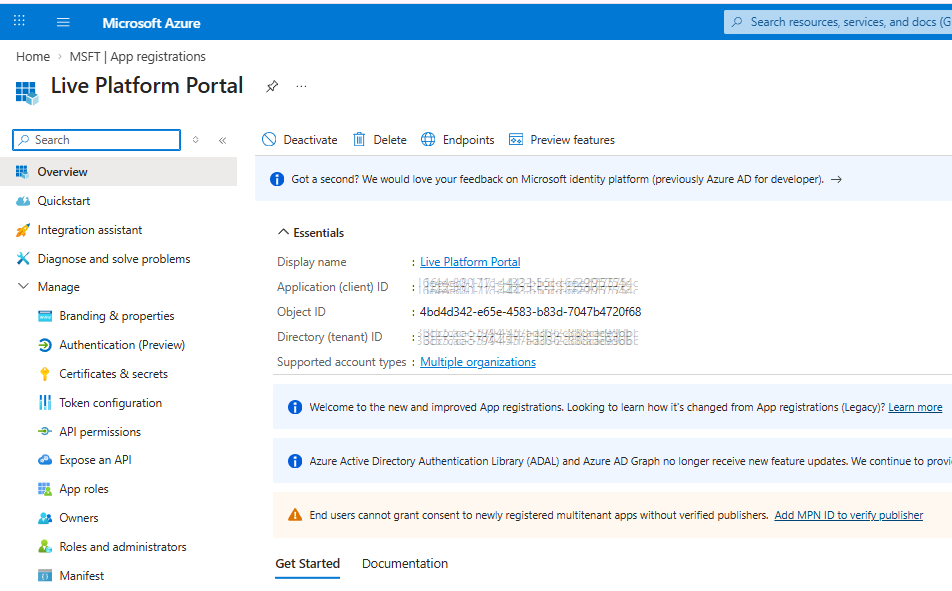
Click Register. The new App registration is displayed. |
|
10.
|
Copy the following values to Notepad as you must configure them in Configuring OVOC Web Azure Settings - Multitenant Setup: |
|
●
|
Application (client) ID |
|
11.
|
In the Navigation pane, select Manage > Authentication (Preview) or click the Redirect URIs link. |
|
12.
|
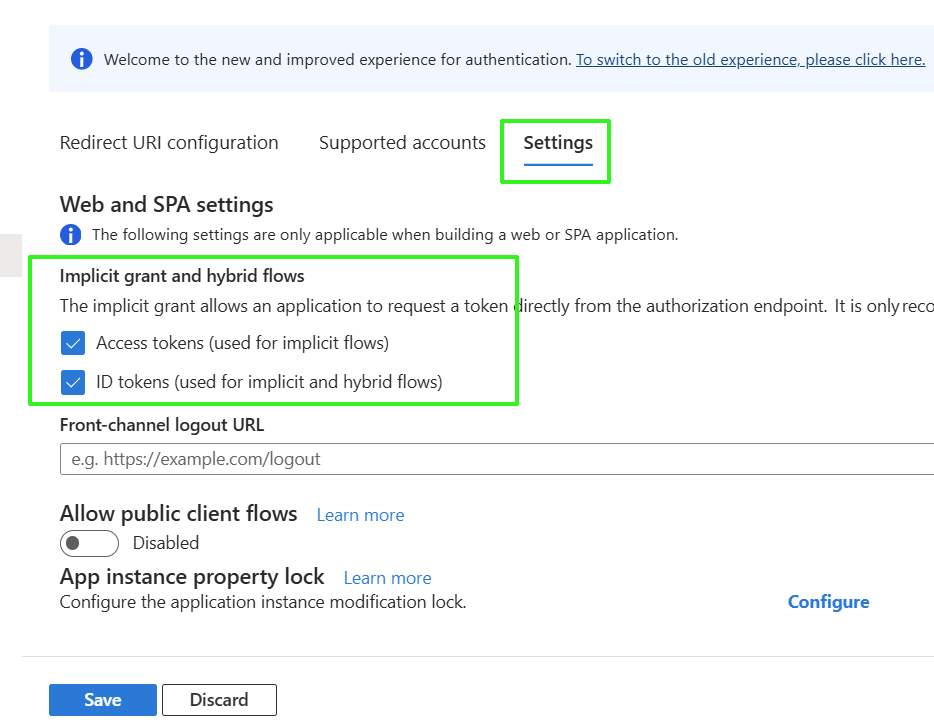
Click the Settings tab and under "Implicit grant and hybrid flows" configure the following: |
|
●
|
Access tokens (used for implicit flows) |
|
●
|
ID tokens (used for implicit and hybrid flows) |
|
14.
|
In the navigation pane, select Manage > Certificates & secrets. |
|
15.
|
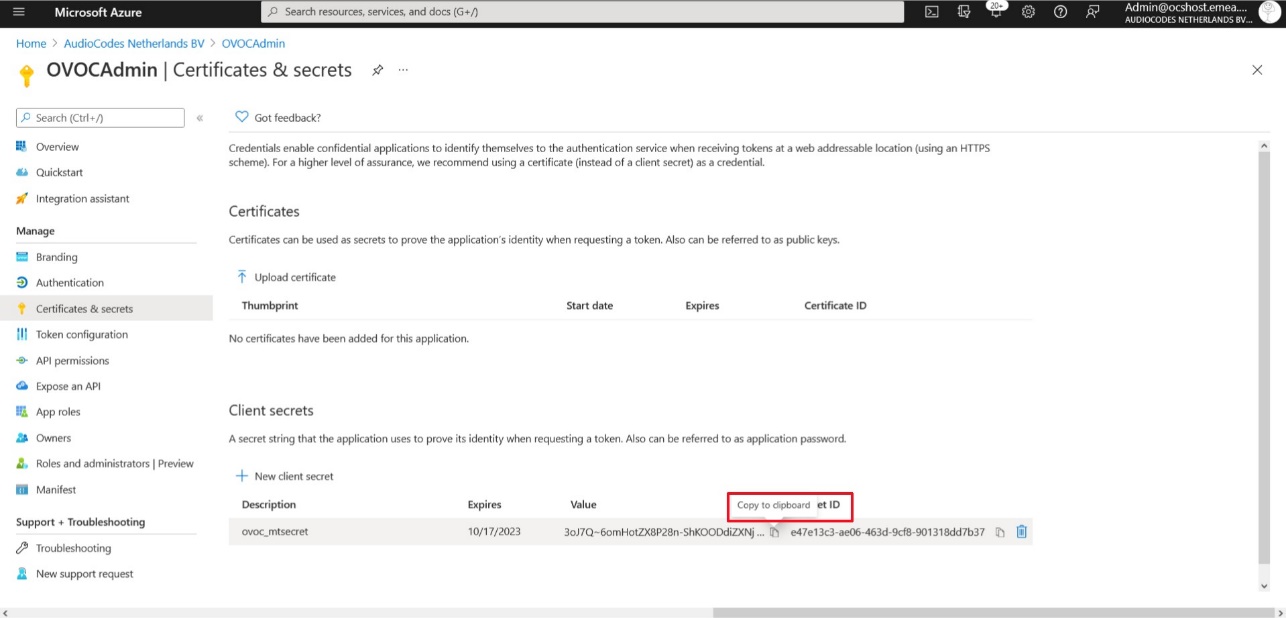
Click New client secret. |
|
16.
|
Enter a description and from the drop-down list select 24 months. |
|
18.
|
Copy the secret Value to clipboard as its required in later configuration and cannot be retrieved once you leave this screen. |
|
●
|
Copy the value immediately to notepad as it hashed after a short time. |
|
●
|
If you use the Application registration to create additional services, a new secret should be created for each new service. |
|
19.
|
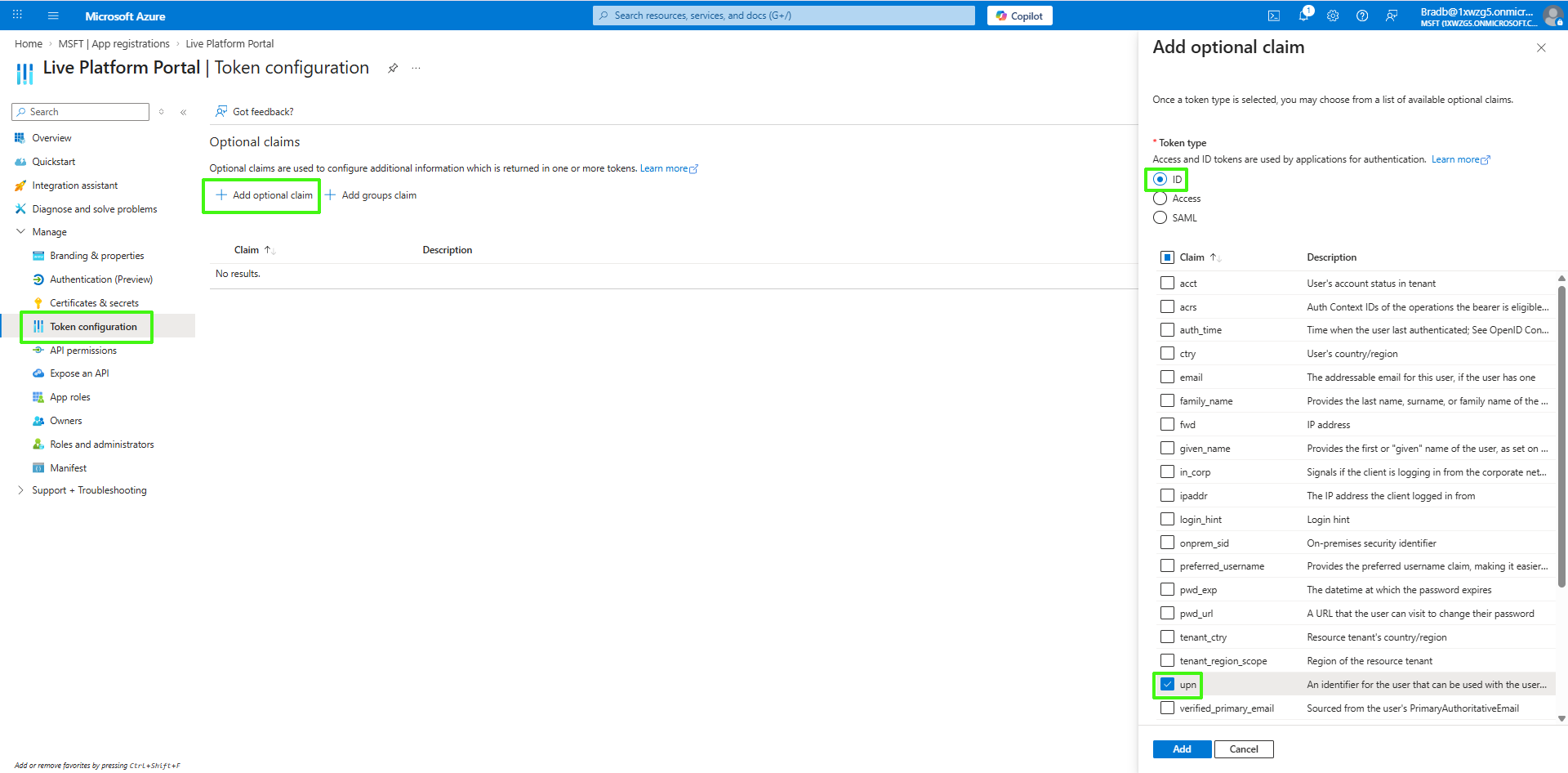
In the Navigation pane, select Manage > Token configuration. |
|
20.
|
Click Add optional claim, choose ID type then upn optional claim and click Add to confirm. |
|
21.
|
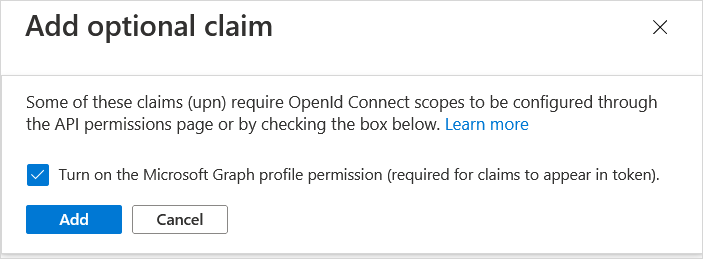
Select the Turn on the Microsoft Graph profile permission check box and then click Add. This adds the Profile permission to the API permissions list. |
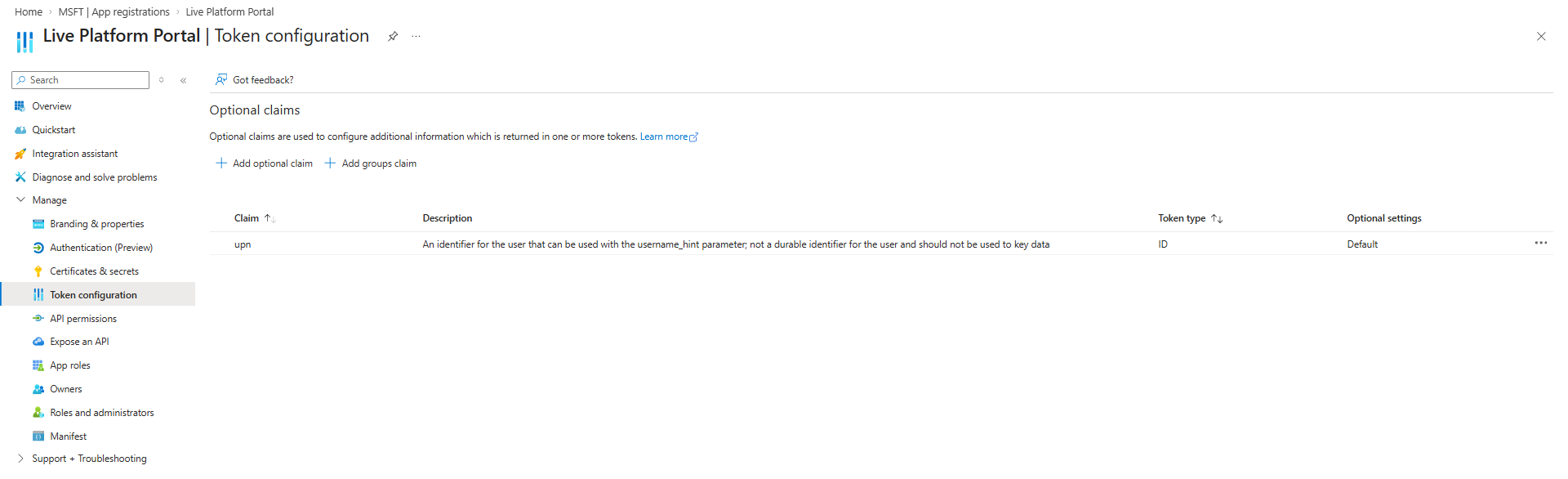
This configuration assumes that all operators have been added to the Active Directory in UPN format e.g. Johnb@firm.com. If operators have been added in email format e.g. John.Brown@firm.com then they will not be able to connect to Live Platform in the multitenancy setup.
|
22.
|
In the Navigation pane, select Manage > API permissions. |
|
23.
|
Click Add a permission and then click the Microsoft Graph link. |
|
24.
|
Click Delegated permissions. |
|
25.
|
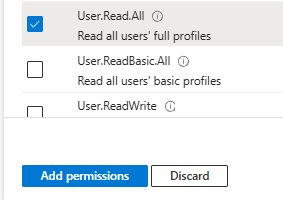
Select permission User.Read.All and then click Add permissons. |
|
26.
|
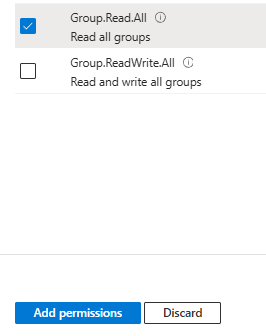
Select Group.Read.All for Live Platform to read permissions from all user groups defined for the tenant, and then click Add permissions. |
|
27.
|
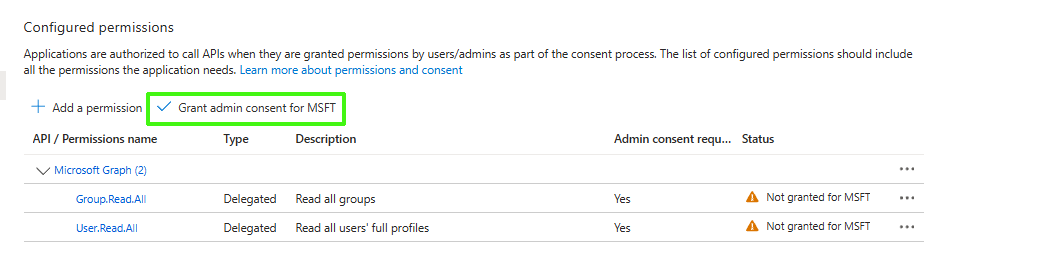
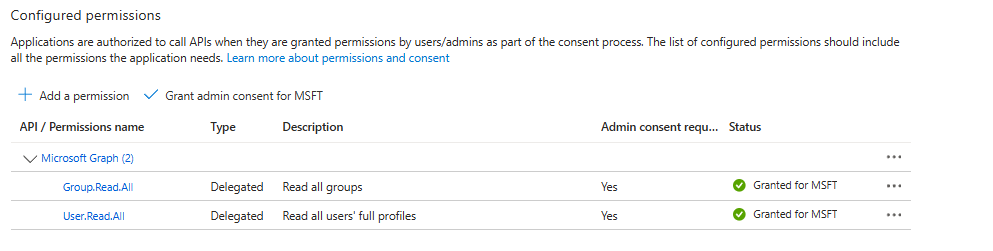
Click Grant admin consent for <Tenant_Name> link to grant consent for the requested permissions for all accounts for this tenant, and then click Yes to confirm. |

|
28.
|
In the Navigation pane, select Manage > App roles and then click Create app role. |
|
29.
|
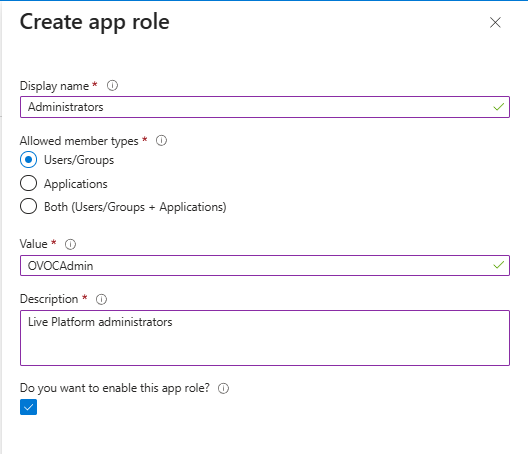
Create an app role with Admin permissions: |
|
a.
|
In the Display Name field, enter "Administrators" or "Admins" |
|
b.
|
Select Users/Groups check box. |
|
c.
|
Enter value "OVOCAdmin" |
|
d.
|
Select the do you want to enable this app role check box. |
|
30.
|
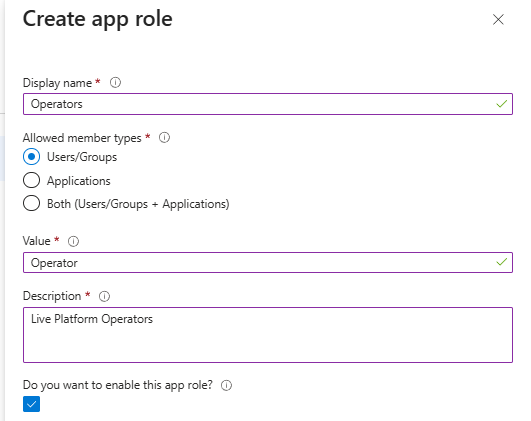
Repeat the above steps to create an App role with Operator permissions with value 'OVOCOperator". |
|
31.
|
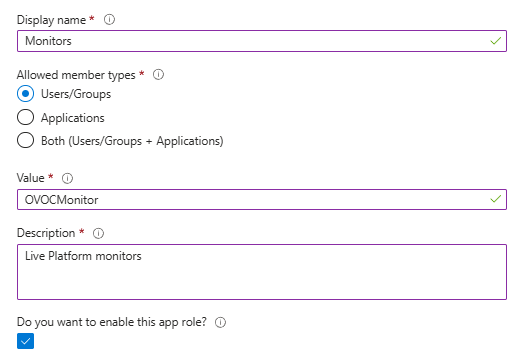
Repeat the steps described for adding "Admin" role above to create an app role with Monitor permissions with value "OVOCMonitor". |
|
32.
|
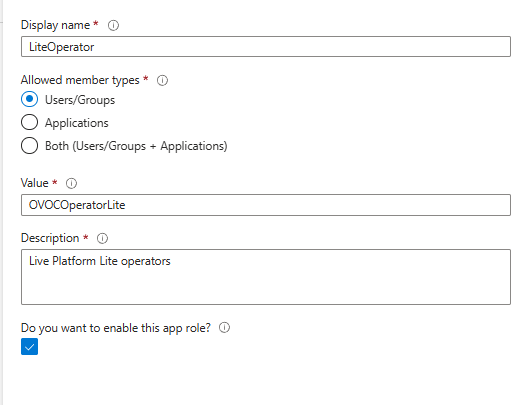
Repeat the steps described for adding "Admin" role above to create an app role with Monitor permissions with value "OVOCOperatorLite". |
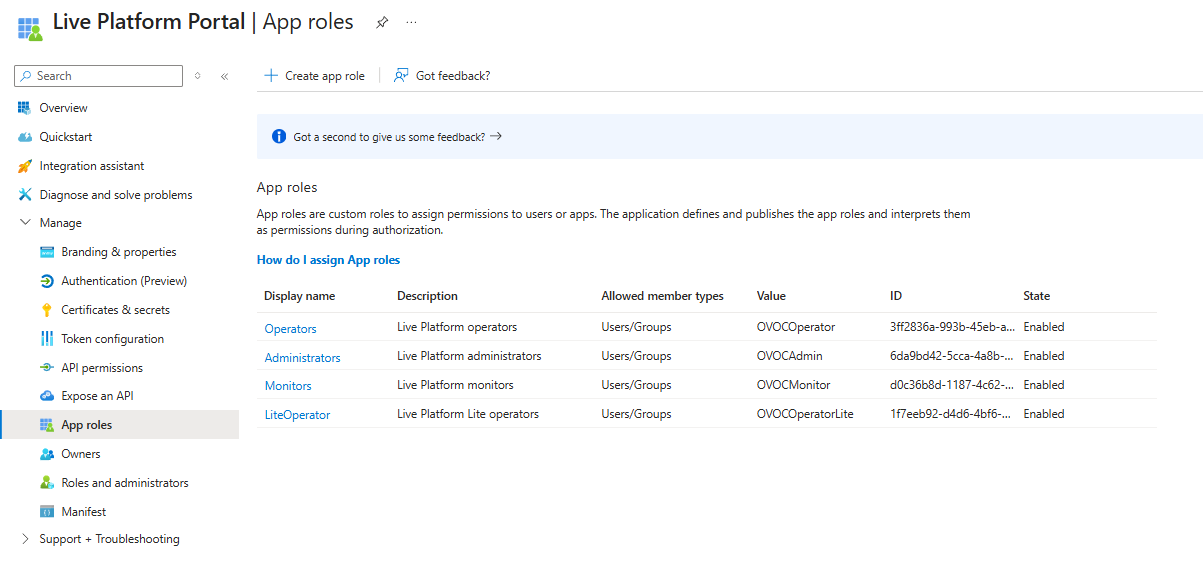
The new roles are displayed:
|
33.
|
Add Main Tenant Azure groups and add members as described in Create Azure Groups and Assign Members |
|
34.
|
Add operators of external tenants and assign them roles as described in Add External Tenant Operators and Assign Roles |
|
35.
|
Configure Azure settings in Live Platform Web as described in Configuring OVOC Web Azure Settings - Multitenant Setup |